Browser Settings
Google Chrome:
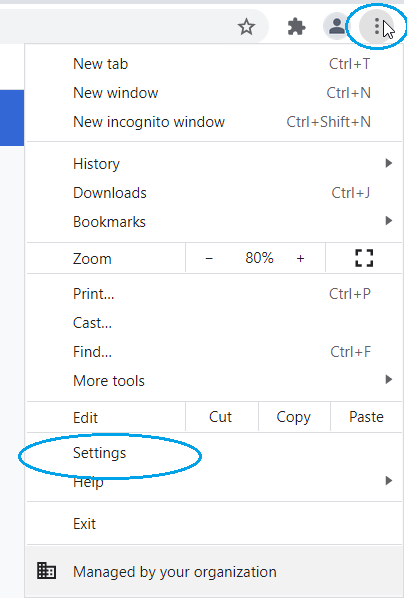
- Click on the "Menu" in the upper right corner of Google Chrome
and Open the Browser settings. The menu is represented by three stacked dots.
- Click on "Settings".
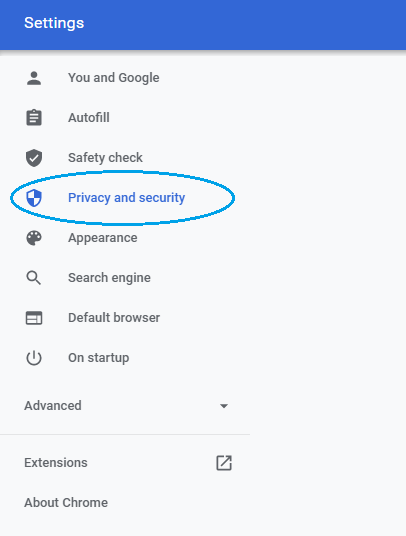
- Select "Privacy and security".
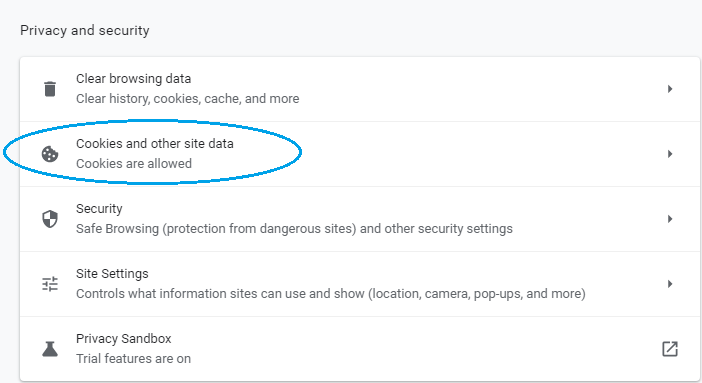
- Click on "Cookies and other site data".
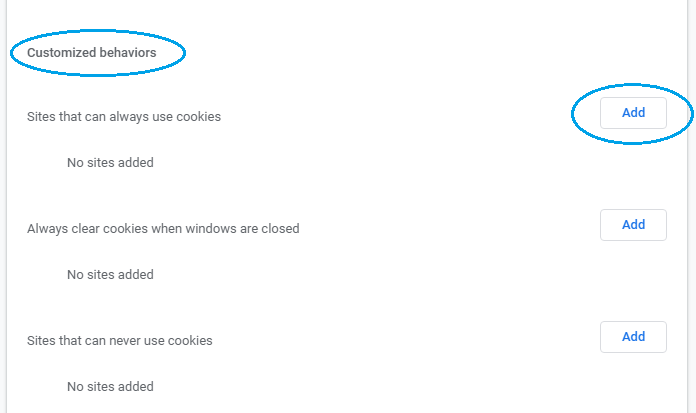
- Scroll down to "Customized behaviors" and add site to always use cookies.
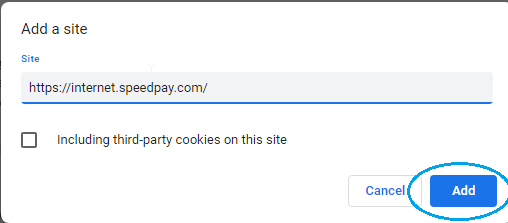
- Enter "https://internet.speedpay.com/" as shown below.
Microsoft Edge:
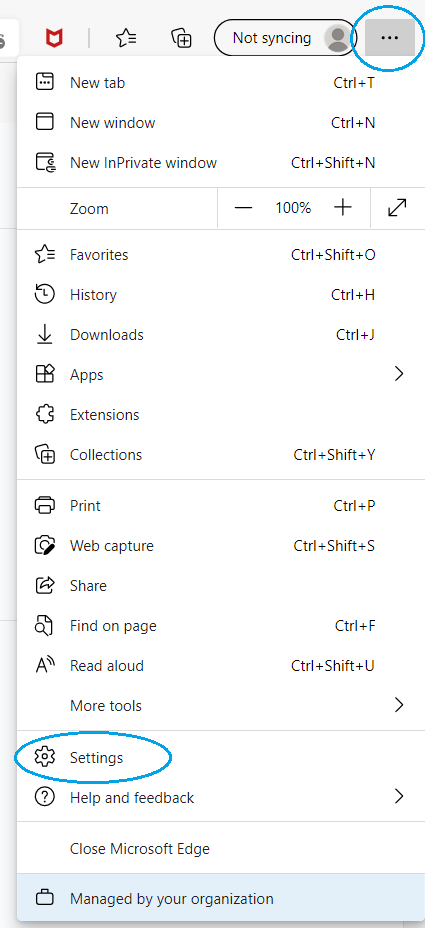
- Click on the "Menu" in the upper right corner of Microsoft Edge
and Open the Browser settings. The menu is represented by three dots.
- Click on "Settings".
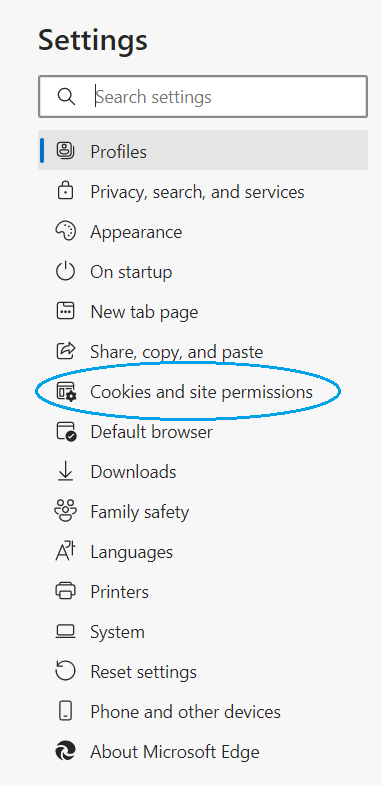
- Select "Cookies and site permissions".
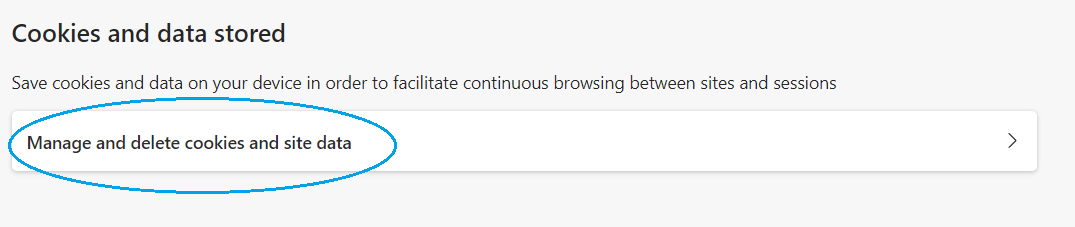
- Next click on "Manage and delete cookies and site data".
- Scroll to "Allow" and click “Add”.
- Enter "https://internet.speedpay.com/" as shown below and click “Add”.
Safari (MacOS):
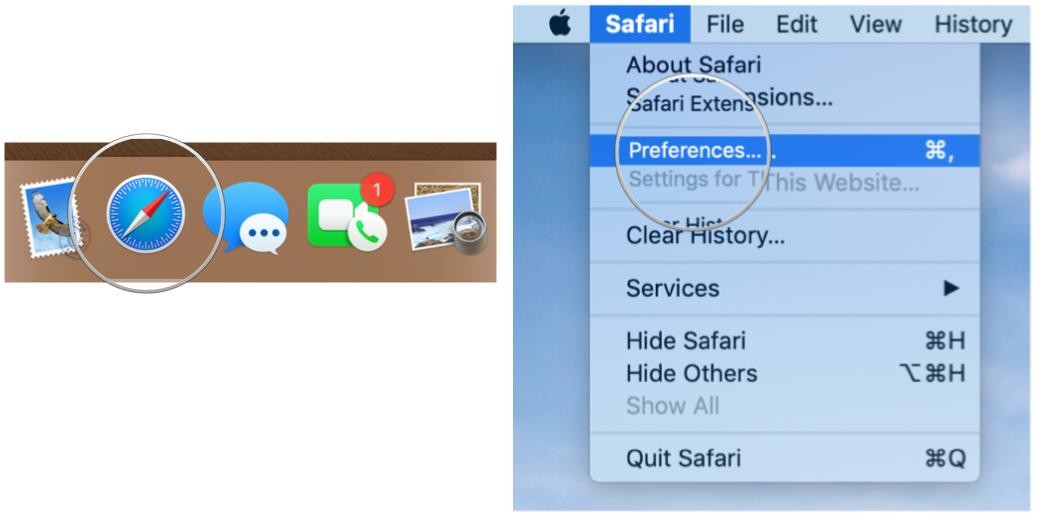
- Launch Safari. If it's not in the Dock, you can find it in the Applications folder.
From the Safari menu, choose Preferences....
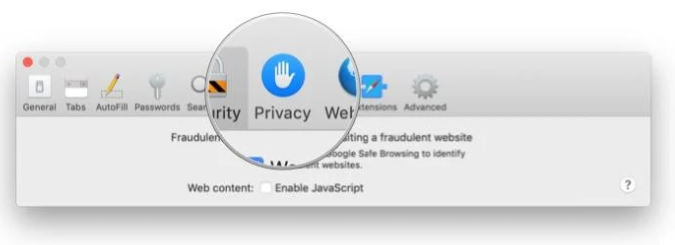
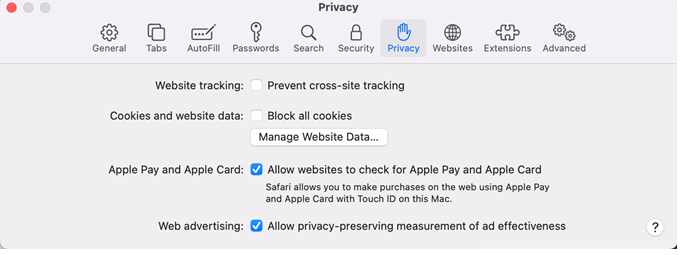
- Click the Privacy button. Uncheck the box to "Block all cookies" and "Prevent cross-site tracking".
Safari (iOS):
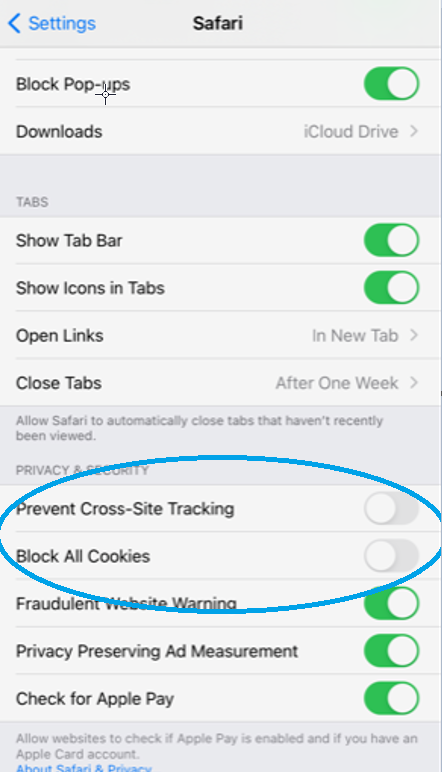
- Go to Settings.
- Select Safari.
- Disable "Block all cookies" and "Prevent cross-site tracking".